Set up email in Mozilla Thunderbird
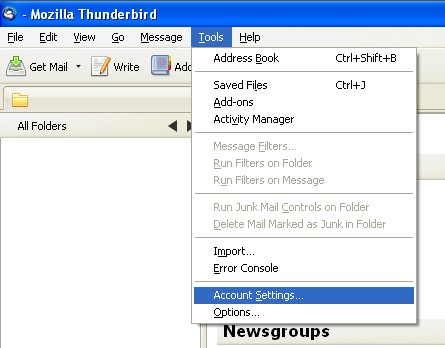
1. In Mozilla Thunderbird, from the Tools menu, select "Account Settings"
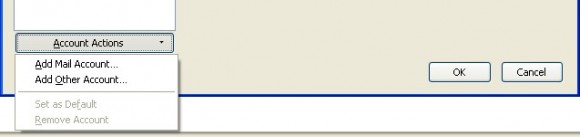
2. Click the "Account Actions" button then click on "Add Mail Account" in the drop down that appears
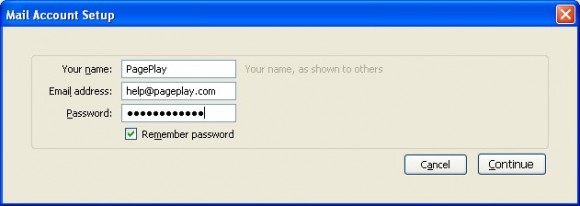
3. Enter your email account details
Your name: The name that appears when someone receives an email from you
Email address: Your PagePlay email account
Password: The password on your PagePlay email account
Then press the Continue button
4. Edit automated account details
Thunderbird will then go away and try to find the necessary account settings for your account. Regardless of the settings it brings back, press the Edit button
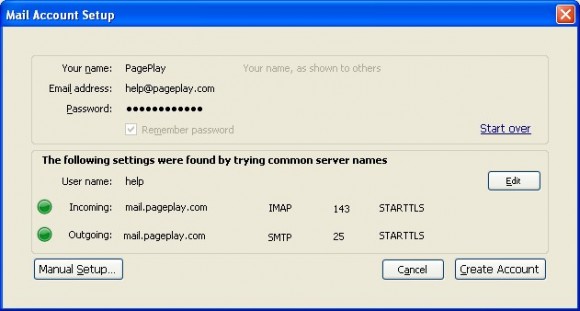
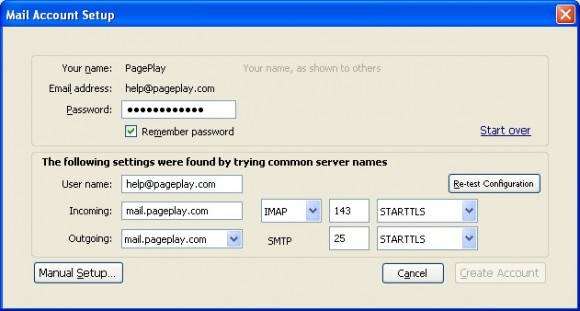
You will then be presented with a range of fields to enter information into. Make sure they are set to the following..
Password: The password for your PagePlay email account
User name: Your PagePlay email address
Incoming (1): mail.pageplay.com
Incoming (2): IMAP
Incoming (3): 993
Incoming (4): SSL/TLS
Outgoing (1): mail.pageplay.com
Outgoing (2): 465
Outgoing (3): SSL/TLS
When you're done, click the Re-test Configuration button, followed by the Create Account button when it appears
5. And you're done!
Click on the OK button to go back to the main email window
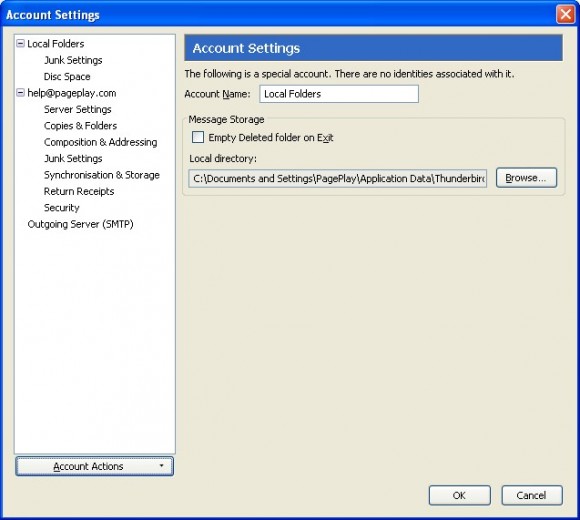
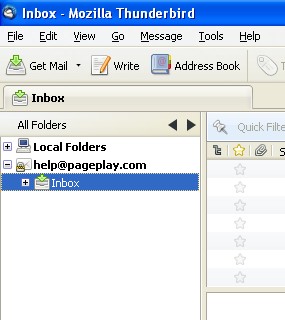
Your email account will be listed in the side bar to the left of the main email window. Maximise the account by clicking on the +* icon and then click on *Inbox to view the emails in your inbox.