Set up email in Gmail
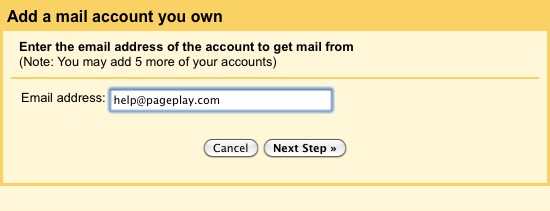
We have used help@pageplay.com as an example in this demonstration, wherever you see help@pageplay.com you will need to use your own email account.
1. Go to Gmail and log in
Here you will be logging in with your existing Google account, not your PagePlay email account. If you need a Google account, you can register for one here: https://accounts.google.com/SignUp
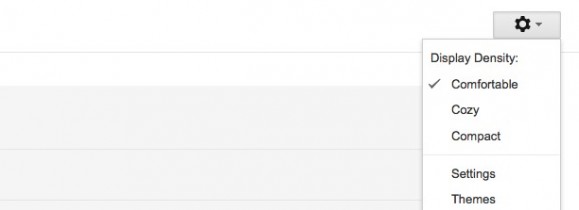
2. Click the settings link
This link can be found by clicking on the Settings button and clicking on the "Settings" option from the dropdown list. See the image below.
3. Select the "Accounts and Import" tab from the Settings page
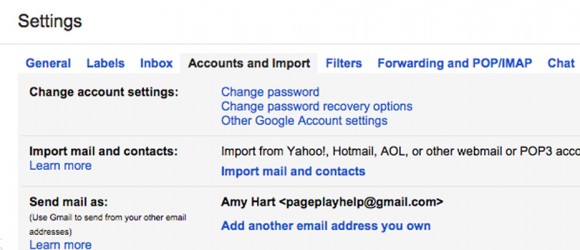
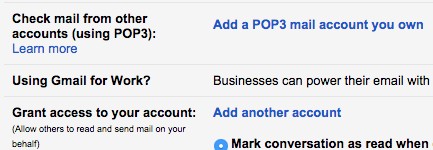
4. Press the "Add a POP3 mail account you own" button under "Check mail from other accounts using POP3"
5. Enter your email address
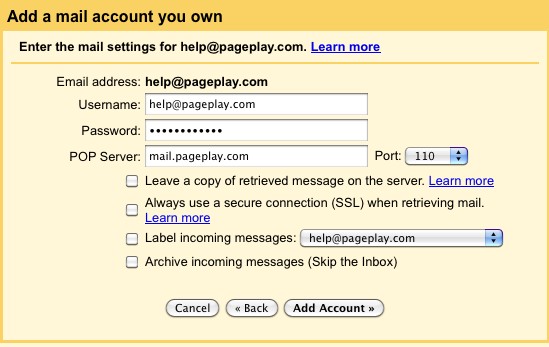
6. Enter mail server details
You will need to enter the following in the three text boxes that appear..
Username: Your email address
Password: The password for your email account
POP Server: mail.pageplay.com
Then press the Add Account button.
7. Choose to be able to send from this account
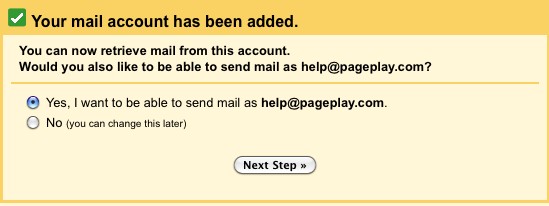
You will be asked if you want to send email from this address, choose Yes, I want to be able to send as..
Then click the Next Step button
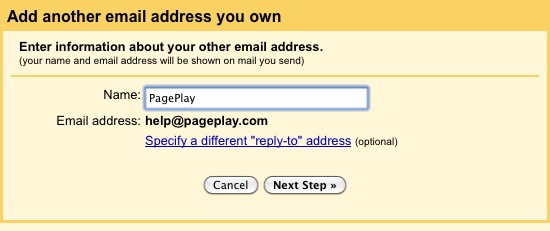
8. Enter your name
This is the name that appears when someone receives an email from you.
When you've done this, press the Next Step button
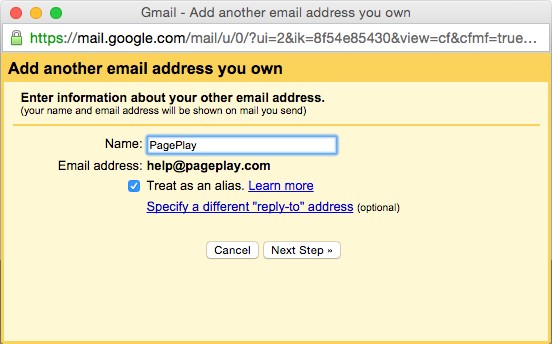
Leave the settings on the next page as they are and click on the Next Step button.
9. Choose outgoing server settings
You will then be presented with more details to enter, you need to enter the following..
SMTP Server: mail.pageplay.com
Username: Your email address
Password: The password for you email account
Port: 465
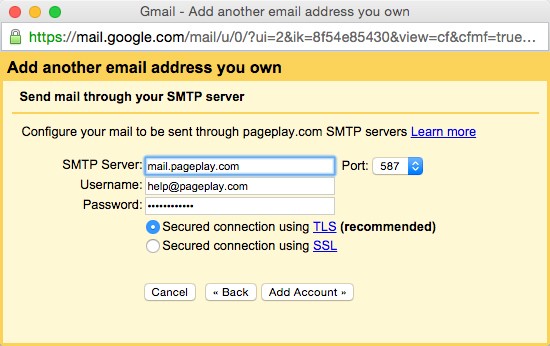
When you're done, press the Add Account button
10. Confirm email verfication
An email will then be sent to your email account asking you to confirm your ownership of the account. Click the link in the email, or enter the code it gives you into the box on Gmail.
To check your email, you can log into webmail by going to http://pageplay.com/webmail and entering your email account as the username and your password when asked.
When you're done, click Verify