Set up email in Outlook 2010
This tutorial shows you how to set up Microsoft Outlook 2007® to work with your e-mail account. This tutorial focuses on setting up Microsoft Outlook 2007, but these settings are similar in other versions of Microsoft Outlook.
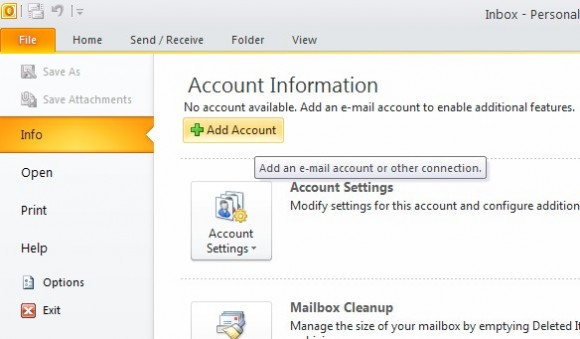
1. In Microsoft Outlook, from the File menu, press the "Add Account" button from within the "Info" tab
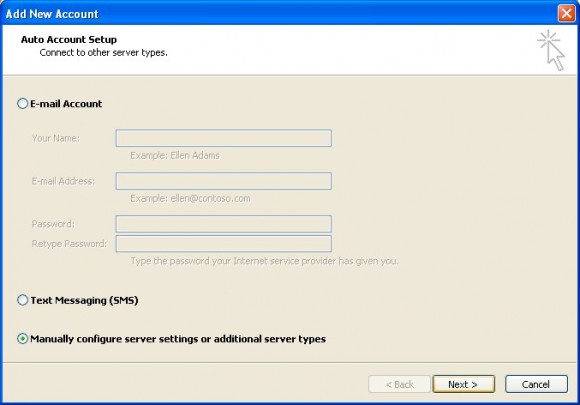
2. In the window that appears, check "Manually configue server settings..." then press "Next >"
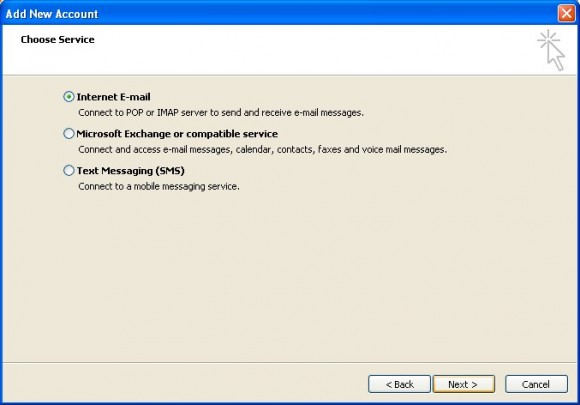
3. Check "Internet E-mail" and the press the "Next >" button
4. Enter your account details..
Your Name: he name you want to appear on emails from you. This is usually your full name or company name
E-mail Address: Your PagePlay email address
Account Type: IMAP
Incoming mail server: mail.pageplay.com
Outgoing mail server (SMTP): mail.pageplay.com
User Name: Your PagePlay email address
Password: The password for your PagePlay email account
When you're done, press the More Settings ... button
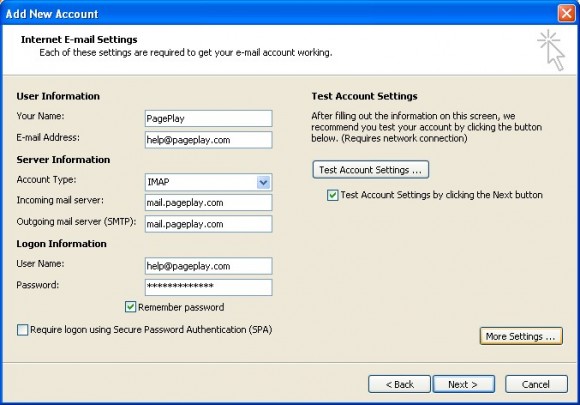
5. On the "More Settings" window that appears, choose the "Outgoing Server" tab
Make sure that "My outgoing server (SMTP) requires authentication" is ticked and press the OK button
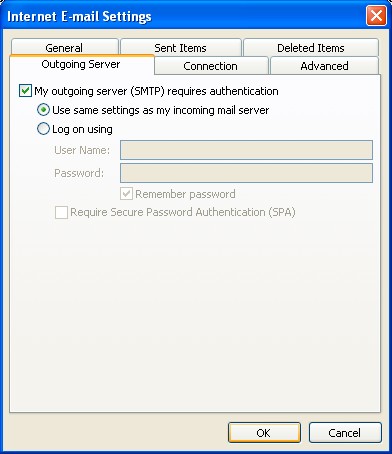
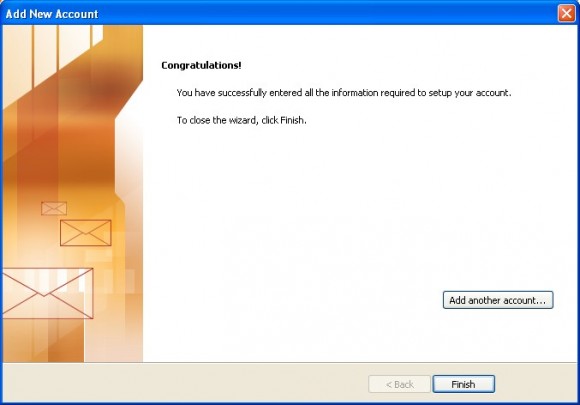
6. Back on the account settings window, press the "Next >" button and you're done!