How do i archive emails using Mail for Mac?
This guide will help you to free up space on your PagePlay email account by saving emails to your computer rather than keeping them on the server.
This guide is only useful if you set up the email to use IMAP, where messages are stored on the server. With POP, messages are download to your computer when you check your mail and are then removed from the server.
This is for users who already access their email using Mail for Mac. If you need help setting up your emails with Mail for Mac, take a look at this guide
1. Open Mail
Once Mail has loaded, click on "Mailbox" in the top toolbar and select "New Mailbox"
2. Create Mailbox
In the box that appears, choose "On my Mac" as the location. You can give the mailbox any name you would like, we have named ours "Archive".
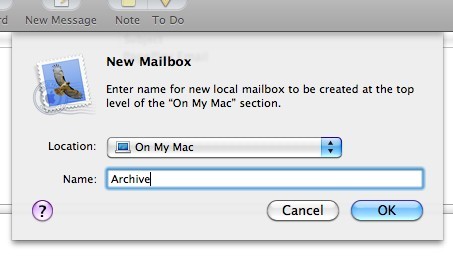
Click "Ok" once you've done that.
3. Moving Emails
The new Mailbox that you've just created should now appear in the panel on the left with your other email mailboxes such as, Inbox, Send, Drafts and Trash.
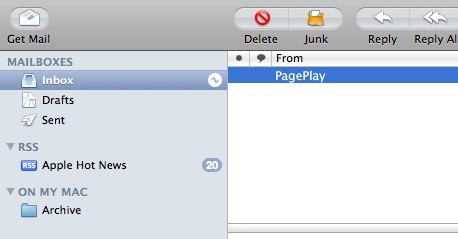
To archive emails, simply drag an email from your Inbox into the newly created Mailbox. Alternatively you can right click on an email (Ctrl + Click) and select "Move To" and then select your Mailbox to move it.
The email you have just moved will no longer be in your Inbox, it will also no longer be using up part of your PagePlay email usage quota.
You may also want to archive emails from your Drafts and Sent folders as emails in these folders also count towards your mailbox usage.